How to track stock on Meku without counting every day
Set up low-stock alerts, expiry dates, and manual adjustments on Meku so your inventory tells you when to restock — without a weekly count.
You know the drill: close on Sunday, spend three hours counting cartons, write it on a notebook page that disappears two weeks later. Meku tracks your stock as you sell, so the count is always current — and tells you what’s low before you run out.
This guide is for you if your products live on a shelf or in a storeroom. It takes about an hour to set up properly, and then it works in the background forever.
What you need before you start
- Your products already added on Meku (see Getting started with Meku Business POS)
- A rough sense of how often you restock each item (weekly? monthly?)
- One quiet evening to set thresholds
You don’t need to count anything before you begin — your current stock numbers are already on the product page from when you first added them.
Step 1: Set a low-stock threshold for each product
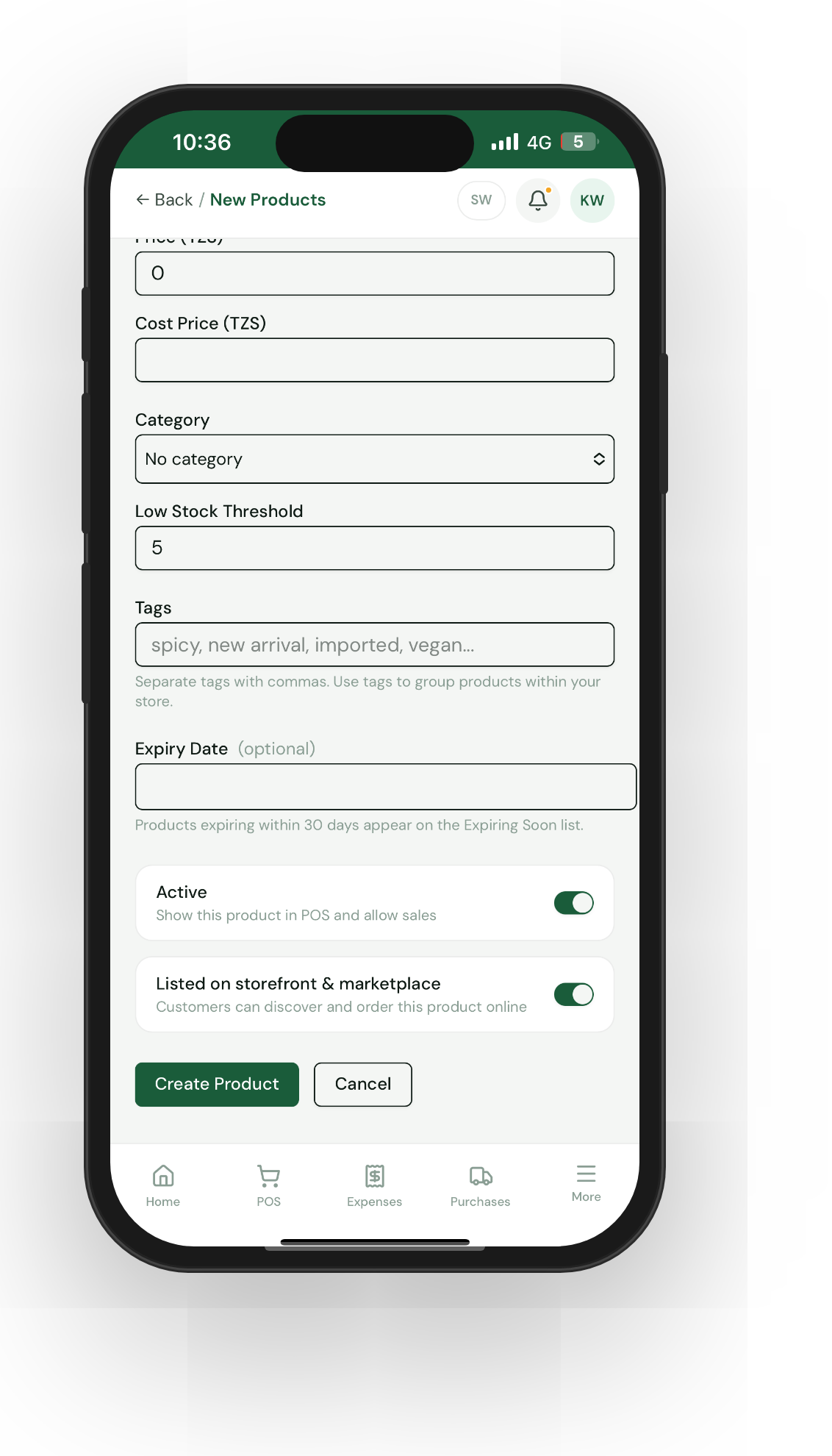
Open Products, tap any item, and look for the Low stock threshold field. This is the number where Meku starts warning you.
A good threshold is what you sell in the time it takes you to restock. If you sell 20 cokes a day and your distributor delivers every three days, set the threshold to 60. The warning fires when you have one restock cycle of stock left — not zero, not double.
For slow-movers (something you sell twice a month), set it to 2 or 3. For fast-movers, set it to a week’s worth.
Step 2: Use Inventory as your daily check
Tap Inventory in the side navigation. You’ll see every product with its current stock count, sorted with low and out-of-stock items at the top. Two filter chips above the table — Low and Out — give you the restock shopping list in two taps.
If you do this once a day, just before opening or just after closing, you’ll never have a customer ask for something and hear yourself say “imeisha” — sorry, finished.
Step 3: Mark expiry dates on anything perishable
For products that go off — milk, bread, fresh produce, medicines, even some cosmetics — open the product and fill in the Expiry date field. Then open Products → Expiring soon to see what’s coming up.
The badges colour-code by urgency: red for less than 7 days, amber for less than 30, yellow further out, grey for already-expired. Use the period chips (7/30/60/90) to plan a clearance discount before something has to be thrown away.
Step 4: Adjust stock when you find shrinkage
Sometimes a customer drops a bottle, or you find an extra carton in the back room. Open the product, tap Adjust stock, enter the change (positive or negative), and write a one-line reason (“breakage”, “found in store room”, “stock-take correction”).
Tip: Always write the reason. Six months from now, when your numbers disagree with reality, the stock-history page is what tells you why — and it’s only as useful as the notes you leave.
Step 5: Read stock history when something looks wrong
Every adjustment, sale, refund, and purchase reception writes a row to the product’s stock history. If your shelf says 14 but Meku says 22, open the product → History tab and walk back. The mistake is almost always there.
Common questions
Does stock update automatically when I sell? Yes — every POS sale, online order, and refund updates stock in the same transaction. You don’t have to track it separately.
What if I make recipes — like a restaurant? Turn on Ingredients under Settings → POS. You then link your finished products (e.g. pilau) to raw ingredients (rice, oil, spices). Selling one pilau deducts the right grams of each.
How often should I do a physical count? Once a month is plenty if you’ve set sensible thresholds and recorded shrinkage as it happens. Once a quarter is acceptable. Weekly is wasted effort.
What to read next
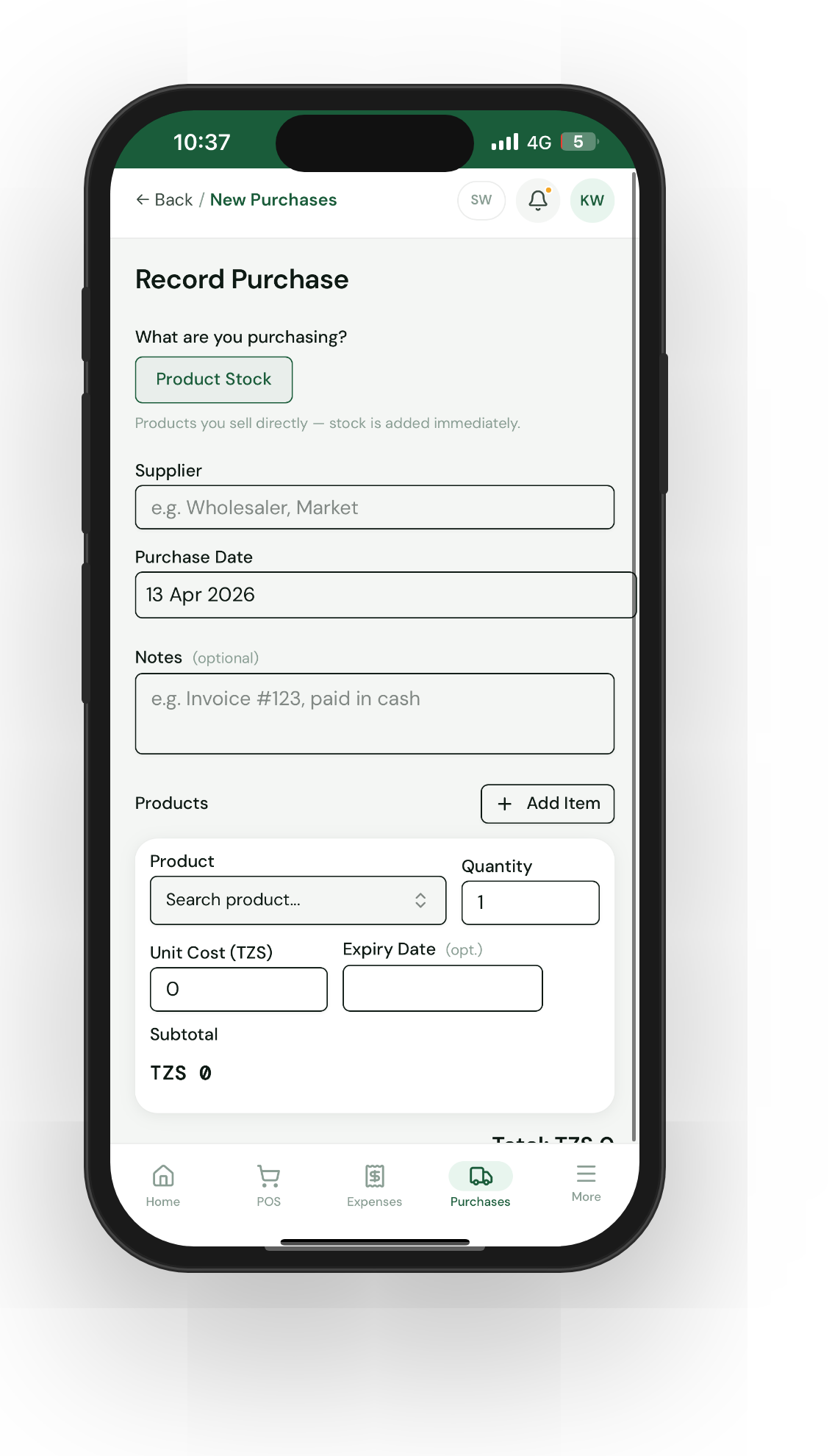
- How to record supplier purchases on Meku — how new deliveries feed into your inventory.
- How to import products in bulk on Meku with CSV — for getting an established catalogue in quickly.
- How to set prices using Meku analytics — spot products you’re underpricing.
Open merchant.meku.co.tz and head to Inventory to start.