How to import products in bulk on Meku with CSV
Bring your whole catalogue into Meku in a single upload — instead of typing each product one at a time.
Adding products one by one is fine for your first ten. It’s slow torture for your first two hundred. Meku’s CSV import lets you paste your catalogue from a spreadsheet — Excel, Google Sheets, or even a notebook someone transcribed once — and create the whole thing in a single upload.
What you need before you start
- Your product list with names and prices (the absolute minimum)
- A plan that supports the number of products you’re importing (Free is 10, paid plans go up to unlimited)
- Five minutes to prepare the spreadsheet
Step 1: Download the template
Open Products → Import CSV. The dialog has a Download template button — tap it and you get a products_import_template.csv with the right columns and three example rows. Open it in Excel or Google Sheets.
The columns are:
- name (required) — e.g. “Sukari ya Kawaida 1kg”
- price (required) — TZS integer, no commas, no decimal:
2500 - stock_quantity — current stock on the shelf
- description — short text
- category — must match a Meku category name exactly
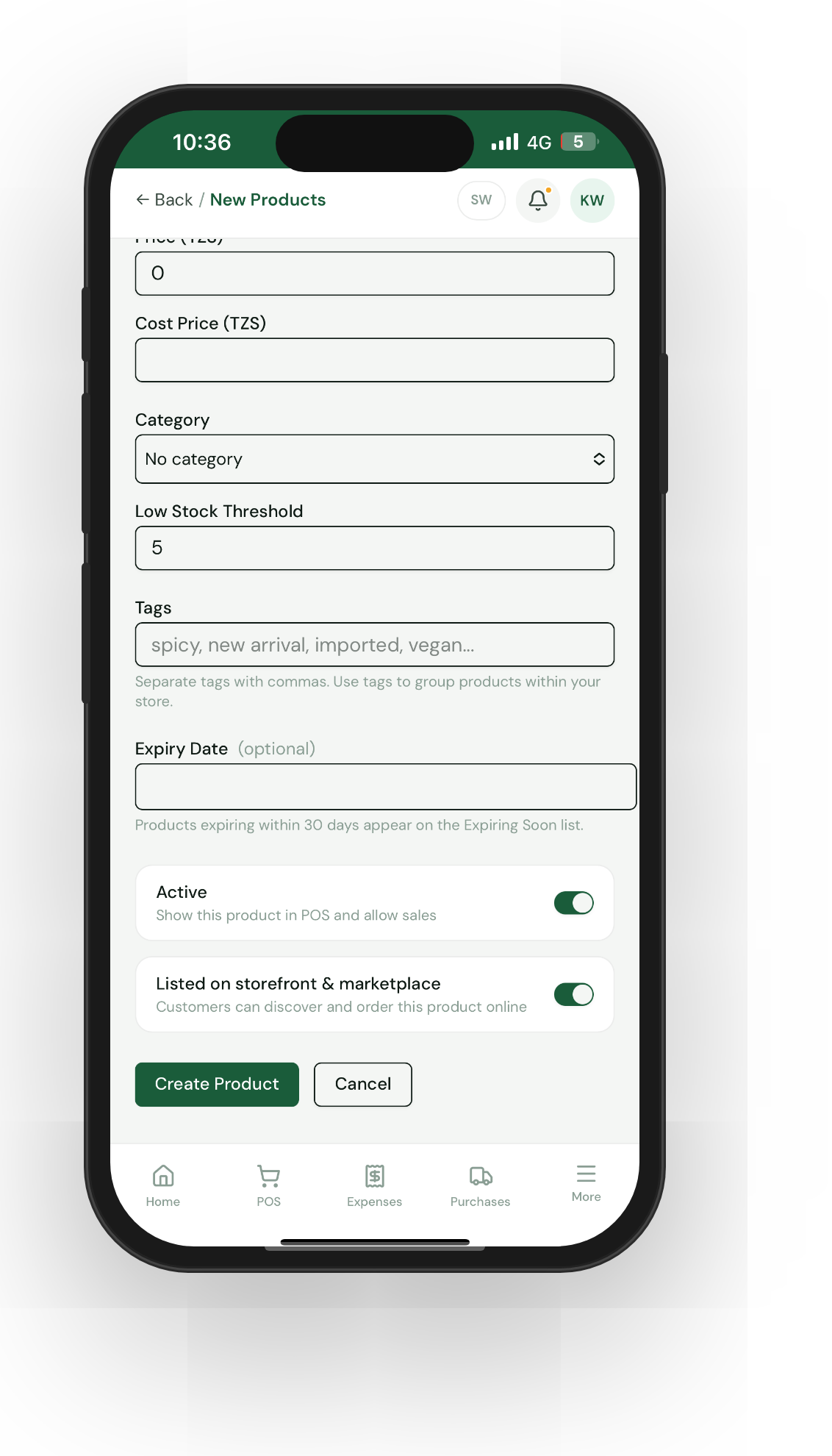
- tags — comma-separated; wrap in quotes if multiple:
"sweet, snack" - low_stock_threshold — number; defaults to 10
- is_listed —
trueorfalse; controls storefront + marketplace visibility - expiry_date — DD-MM-YYYY format (e.g.
31-12-2026); leave blank if no expiry
Step 2: Fill in your products
Paste your existing list into the template, one product per row. Don’t add columns Meku doesn’t recognise — they’ll be ignored. Don’t leave the name or price columns blank — those rows will fail.
If you’re not sure about a category, leave it blank. You can assign categories later in bulk from the Products page.
Tip: Quote your tags.
breakfast, localwithout quotes becomes two separate columns when Excel saves the CSV."breakfast, local"stays as a single tags field. The included template shows this.
Step 3: Upload and preview
Back on the Import dialog, tap the dotted box, choose your file, and Meku shows you the first five rows. Eyeball them — does the name look right? Is the price the actual number, not “TZS 2,500”? If anything looks off, fix the spreadsheet and re-upload.
Step 4: Import
Tap Import products. Meku processes the rows in one transaction and shows you three numbers:
- Created — new products added
- Updated — existing products (matched by SKU)
- Failed — rows that couldn’t be imported, with a per-row reason
Bad rows don’t stop good rows. If row 47 has a bad price, rows 46 and 48 still go through.
Step 5: Review the failures
If the result shows failures, scroll the errors list — each one tells you the row number, the field that failed, and what was wrong (“Price must be a non-negative number”, “Invalid date — use DD-MM-YYYY”, “Product limit reached”). Fix those rows in the spreadsheet and import only the fixed rows.
Common questions
Can I include photos? Not via CSV — images have to be uploaded one at a time through the product form. The CSV is for the catalogue skeleton; photos are a later pass.
What happens if I re-import the same file? The import is designed for one-time onboarding, not ongoing updates. For ongoing changes, edit products individually — using CSV to manage stock long-term defeats the purpose of having Meku in the first place.
Can I import more than 500 rows at once? No — 500 is the hard cap per upload. Split your catalogue into batches if you have more.
What to read next
- How to track stock on Meku without counting every day — what to do after your products are in.
- How to record supplier purchases on Meku — how to add stock when new deliveries arrive.
- How staff can use Meku without seeing your business data — your staff can sell imported products immediately.
Open merchant.meku.co.tz/products and tap Import CSV to start.