How to record supplier purchases on Meku
Use Meku's purchase recorder to add stock, track your suppliers, and keep your inventory honest — replacing the notebook of supplier IOUs.
Your purchase notebook works fine until the page tears, or you forget to write something down, or your handwriting from six months ago no longer makes sense. The cost of that gap shows up in your stock count.
Meku’s Purchases module is the same notebook, but it can’t lose pages. It also updates your inventory automatically so you don’t have to retype quantities.
What you need before you start
- A delivery from your supplier in front of you (or a recent one in mind)
- Your supplier’s name and phone number
- The list of products they delivered with quantities and unit costs
Step 1: Add the supplier once
Open Contacts → Suppliers and tap Add supplier. Enter the name as you actually refer to them (“Mama Lucy Wholesalers”, not “Acme Trading Co. Ltd”), their phone, and an optional address. You only do this once per supplier — every future purchase from them pulls from the saved list.
Step 2: Record the purchase
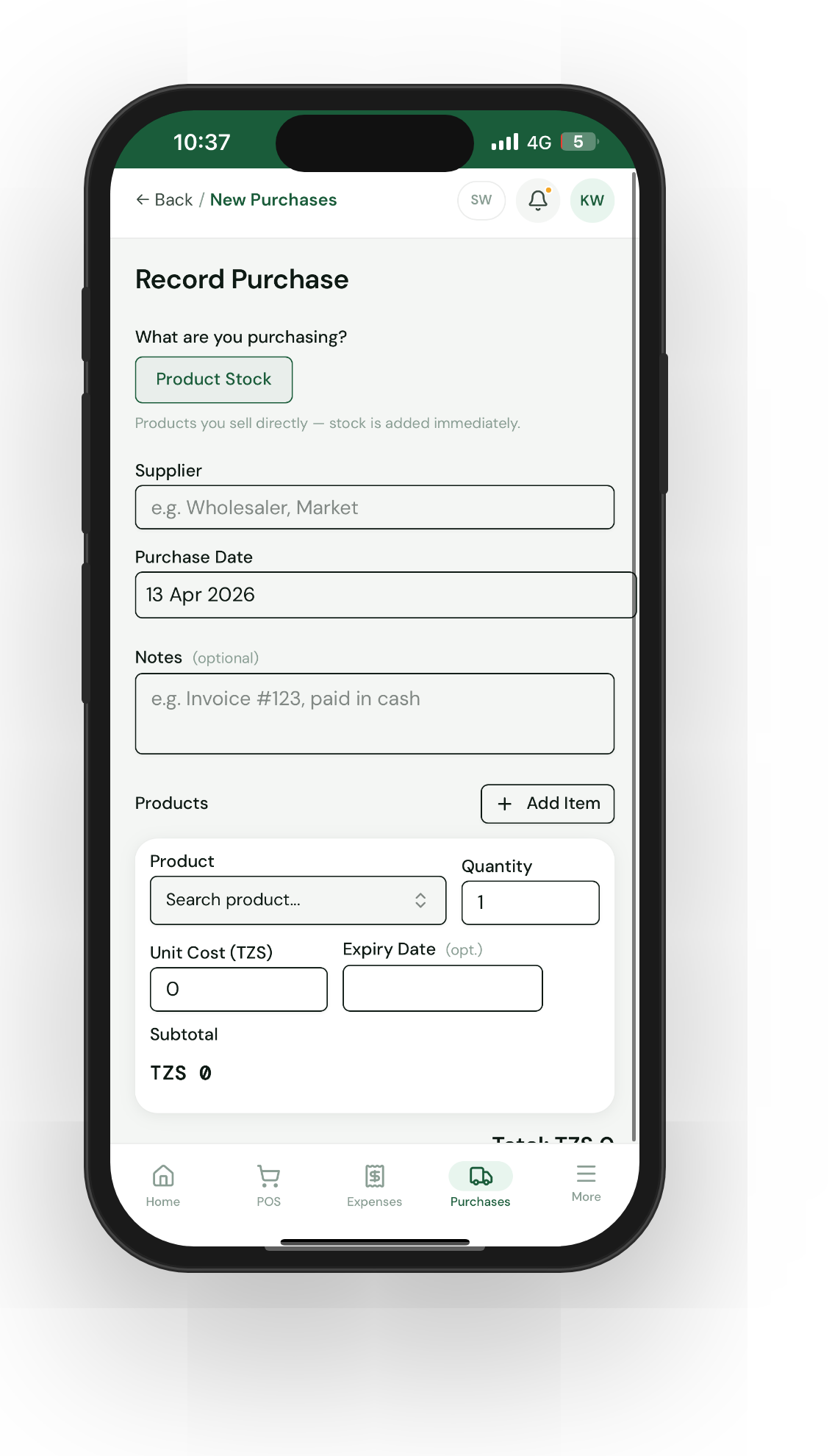
Tap Purchases → Record purchase. The form has three blocks:
- Supplier — start typing; the combobox finds matches. If they’re new, tap “Add new supplier” right there.
- Type — Product stock for items you sell directly. Materials for raw ingredients you use to make finished products (only if Ingredients is turned on).
- Items — search for each product, set the quantity, and the unit cost.
If the delivery includes products that expire (bread, milk, medicines), tap the per-item expiry field — Meku will warn you in the Expiring soon page before they go off.
Step 3: Submit
The default action is Record purchase — one tap, and Meku does three things in the same instant: writes the purchase to your records, credits the products’ stock, and creates a stock-history row showing the supplier and date.
Tip: Record the purchase while you unload, not later from memory. The whole flow takes 90 seconds for a 10-line delivery, and the numbers are right the first time.
Step 4: Look up purchase history
Tap any supplier on the Contacts page to see every purchase you’ve made from them — total spent, last delivery, average order. This is the data you bring to your next price conversation with them.
Step 5: Void a mistake without losing the trail
If you record a purchase wrong — wrong supplier, wrong quantity, an entire ghost delivery — you can void it. Open the purchase, tap Void, and the stock credit reverses in the same transaction. The original purchase stays in your history with a “voided” stamp so your books remain honest.
Common questions
What if the supplier delivered the wrong quantity? Edit the purchase before you submit, or record what actually arrived. If you discover a shortage later, use Inventory → Adjust stock with a clear reason — that creates the audit trail.
Can I record a delivery from a one-off supplier? Yes — just type the name in the supplier field and add them on the spot. They’ll stay on your supplier list for next time, but it’s no extra effort.
Does this work for materials, not just products to sell? Yes. Turn on Ingredients in Settings → POS, set up your inventory items, then choose Materials as the purchase type. The stock goes onto your raw materials, not your sellable product list.
What to read next
- How to track stock on Meku without counting every day — how purchase reception feeds into low-stock alerts.
- How to track business expenses on Meku — adding non-product expenses (rent, transport) to the same picture.
- How to import products in bulk on Meku with CSV — for getting your full catalogue in at once.
Open merchant.meku.co.tz/purchases/new to record a delivery.