How to track business expenses on Meku
Record expenses as they happen, set up categories that match how your business actually spends money, and see what's eating your margin.
You can probably tell me what you sold yesterday. Can you tell me what you spent? Most owners can’t. The gap between revenue and profit is hidden in the boda fare, the soda for the customer, the M-Pesa fee, the loan repayment, the SIM card top-up. Meku makes recording them painless enough that you’ll actually do it.
What you need before you start
- Receipts, M-Pesa confirmations, or notes from the day’s spending (the more recent the better)
- 10 minutes to set up your expense categories the way your business actually spends money
Step 1: Set up your categories
Open Expenses and tap the gear icon. Meku starts you with seven defaults (Rent, Utilities, Salaries, Supplies, Transport, Marketing, Other) — keep what fits, rename what doesn’t, and add what’s missing.
If you run a salon you might add Products and Equipment. If you sell food you might add Gas and Packaging. If you ride boda you might add Fuel, Spare parts, and Permits. Don’t over-think it — five to ten categories is enough.
Step 2: Record expenses as they happen
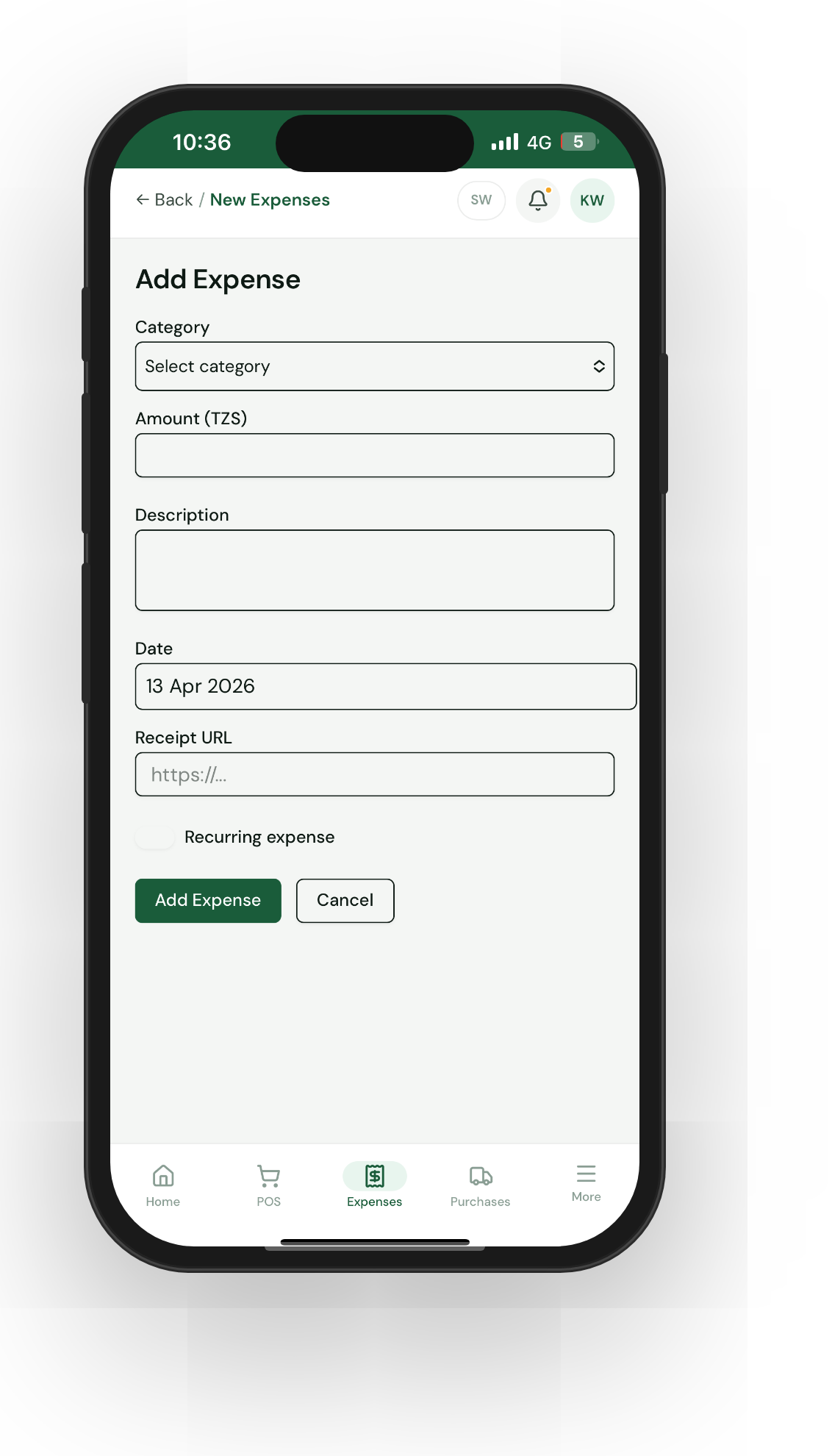
Tap Add expense (or the + button at the bottom on mobile). Fill in:
- Amount — in TZS
- Category — pick from your dropdown
- Date — defaults to today
- Notes — optional, but useful for the unusual ones
If a category doesn’t exist yet, tap Add new category right inside the form — no need to leave the screen.
Step 3: Make it a daily habit
The trick is daily, not weekly. End-of-day recording catches the small things — the boda fare home, the customer who got a free water — that you’d otherwise forget. Five expenses a day takes 90 seconds; recreating a week’s worth from a Sunday morning takes 30 minutes and misses half of them.
Tip: Snap a photo of every receipt before you leave the counter. Whether you transcribe it the same evening or three days later, the photo is your safety net against losing the paper.
Step 4: Read the expense analysis
Open Analytics → Expenses analysis. You’ll see your total spend for the period, broken down by category with colour-coded bars. The pattern usually surprises owners — “I had no idea I was spending that much on transport” is the most common reaction.
This is the input for next month’s decisions. If Marketing is producing nothing measurable, cut it. If Transport is eating 15% of your revenue, consider consolidating deliveries.
Step 5: Let your staff record their own
Your staff can record expenses too (under their own login) — boda fares they paid out of pocket, supplies they bought when you sent them to Kariakoo. They only see their own entries; you see everyone’s. This is how a 2-person operation stops losing the small reimbursements that add up.
Common questions
Can I edit an expense after I’ve recorded it? Yes — tap any expense in the list to edit it. If you need to remove an obvious mistake, you can void it (the row stays in your audit history with a “voided” mark).
Should I record my own salary as an expense? Yes, if you pay yourself a fixed amount. It’s the only way your profit number means anything. If you take cash from the till irregularly, set up a Drawings category and record it.
What about loan repayments? Record the interest portion as an expense. The principal is a balance-sheet item, not a profit-and-loss one. If that distinction confuses you, just record the full payment under Loan repayment — you can refine the accounting later.
What to read next
- How to set prices using Meku analytics — combining your expenses and revenue into the profit page.
- How to track credit sales and customer debts on Meku — closing the other half of the income/outgoings picture.
- How staff can use Meku without seeing your business data — controlling who sees what.
Open merchant.meku.co.tz/expenses to record today’s spending.