How to customise your Meku online storefront
Twenty minutes of setup turns the default Meku storefront into one that looks like yours — brand colour, hero, announcement bar, socials, and logo.
When you’re on a paid plan you get your own online storefront at yourname.meku.co.tz — a real website that takes orders, accepts payments, and arranges delivery. The default looks fine; with twenty minutes of customisation, it looks like yours. This guide is for that twenty minutes.
What you need before you start
- A paid plan (the storefront is enabled on Starter and above)
- A logo or business name image (square, at least 200×200px)
- A banner photo of your shop, products, or work (landscape, at least 1200×400px)
- The Instagram, Facebook, TikTok, and WhatsApp handles your business uses
Step 1: Open the storefront editor
Tap Storefront in the side navigation. You’ll see your live storefront on the right, and a configuration panel on the left. Your changes don’t go live until you save.
Step 2: Set your brand colour
Your brand colour is the single biggest “this feels like mine” lever. Pick a hex code that matches your existing brand or your shop’s signage. The colour drives buttons, links, the cart total, and the hero accent. If you don’t know your hex code, use a colour picker site or copy from your logo file in any image editor.
Step 3: Write the hero
The hero is the first thing your visitors see. Two fields:
- Headline — what you sell or who you serve, in one line (“Fresh fish, daily from Mwanza”). Don’t be clever; be specific.
- Subheadline — one sentence of context (“Delivered to your door across Dar es Salaam by 3pm if you order before noon”).
If you have a hero image, upload it under the image picker — it shows behind the text with a slight darkening overlay so the words stay readable.
Step 4: Add an announcement bar
This is the narrow strip across the top of every page. Use it for time-sensitive offers (“Free delivery this weekend over 50,000 TZS”) or important info (“Closed Saturday for maintenance”). Toggle it off when you have nothing to announce — an empty bar is worse than no bar.
Tip: Update your announcement bar weekly. A storefront that changes feels alive; one that doesn’t feels abandoned.
Step 5: Wire your social links and upload your logo
Add your Instagram, Facebook, TikTok, and WhatsApp. These render as icons in the footer of every page. The WhatsApp link uses click-to-chat with the number you provide — your customers can ask a question with one tap instead of typing your number into a new conversation.
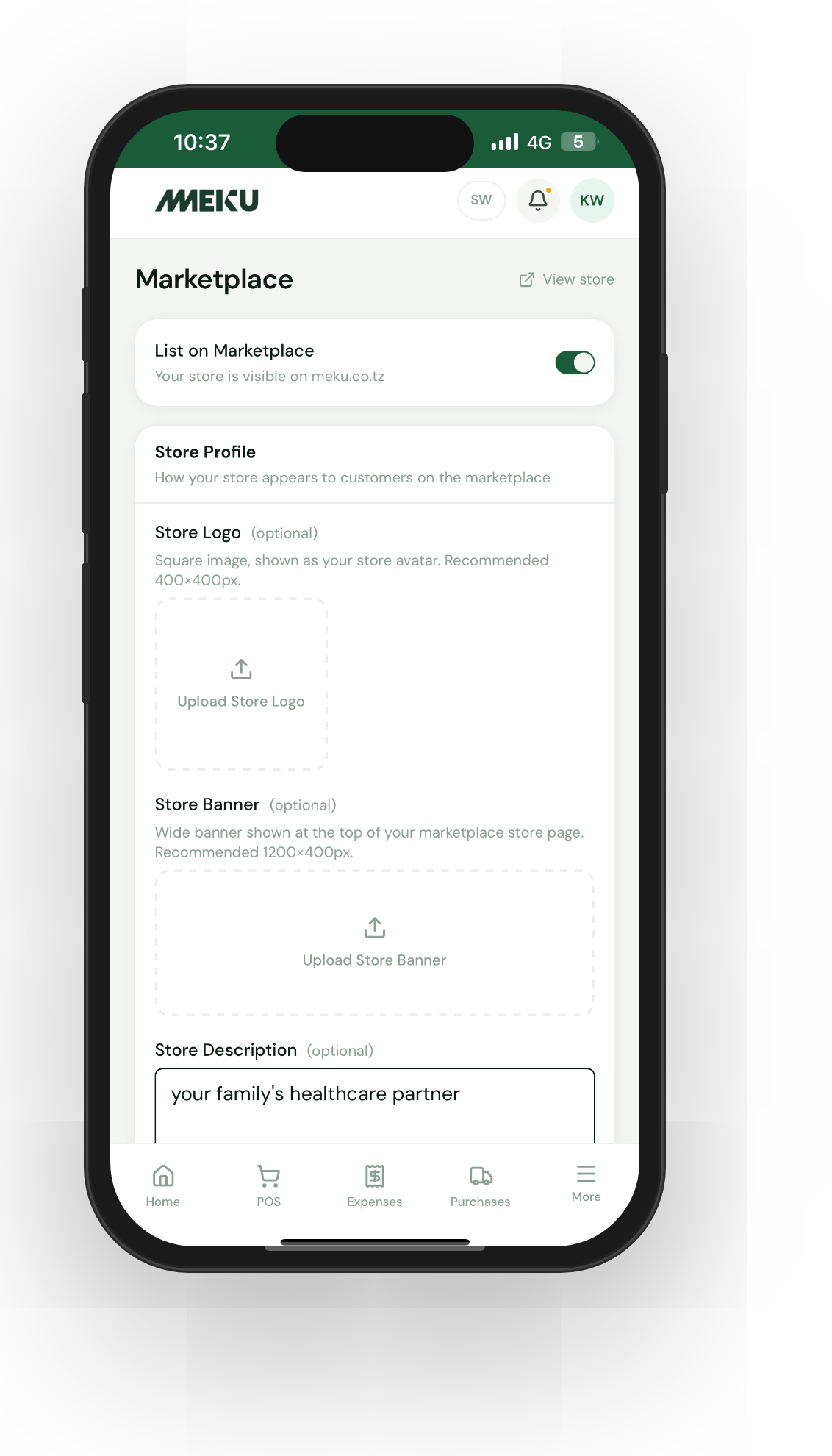
Then open Settings → Business and upload your logo. It appears in three places: the top of your storefront, your marketplace store card, and the header of every invoice email and PDF you send.
Common questions
Can I use my own domain?
On Enterprise, yes — a custom domain like shop.yourbusiness.co.tz can be pointed at Meku. Get in touch through Settings → Contact Support to set it up.
Does the storefront work on phones? Yes — it’s designed mobile-first. Most of your customers will browse from a phone, so always preview your changes by opening your storefront on your own phone after each save.
What about SEO? Storefronts are server-rendered and include proper page titles, descriptions, and Open Graph tags so links shared on WhatsApp show a real preview. Beyond that, your strongest discovery channels are the marketplace, your social pages, and word of mouth.
What to read next
- How to list your shop on Meku Marketplace — getting discovered by customers who don’t know your URL yet.
- How to fulfil online orders on Meku — what happens when a storefront order comes in.
- How to import products in bulk on Meku with CSV — populating the catalogue your storefront displays.
Open merchant.meku.co.tz/storefront to start customising.