How to fulfil online orders on Meku
Walk through the three-state Meku order flow — Sold, Handed over, Paid — and the package details that keep Dodo deliveries from getting mis-priced.
An online order has a different rhythm from a POS sale at your counter. Your customer has already paid; the question now is whether you can pack it, hand it over to the rider, and get on with your day. Meku’s order page is built around that rhythm — three states, three timestamps, no busywork.
What you need before you start
- An online order in your queue (or a test order — open your storefront and place one)
- Your product weights and dimensions filled in (Meku uses these to size the delivery vehicle)
- Your pickup address set under Settings → Delivery & Payouts
- Your business phone set under Settings → Business (the rider calls if they get lost)
Step 1: Open the Orders page
Tap Orders in the side navigation. The filter chips at the top split your orders into:
- All — every order, any state
- Sold — paid, awaiting your hand-over to the rider
- Handed over — rider has picked up, in delivery
- Paid — delivered and your money is in your account
The default sort is newest first. The amount column shows what you earn, not what your customer paid — service fees are stripped out.
Step 2: Open a Sold order
A new order arrives in the Sold column. Tap it. You’ll see:
- Customer name and phone
- Delivery address with a small map
- Item list with quantities
- Total you’ll receive (after Meku’s service fee and the delivery fee)
- The money timeline showing Sold done, Handed over pending, Paid pending
Step 3: Pack and prepare for the rider
Pack the order. A Dodo rider will be dispatched automatically based on the address and your pickup location — you don’t have to push a button. If the address looks wrong or you need to reach your customer, use the phone number on the order page.
Tip: Get your package dimensions right on every product. A “small” package quoted as 3kg and 25×20×15cm gets a different vehicle and a different price from a “heavy” 25kg sack of rice. Wrong dimensions mean either a price refund to you or a Dodo dispatch failure — both are avoidable by filling in your product form correctly once.
Step 4: Hand it to the rider
The Dodo rider arrives, shows you the order number on their phone, and picks up the package. The moment they tap picked up on their side, your order moves to Handed over — and the fulfilled at timestamp appears in your timeline. You can close the order page; you’ve done your part.
Step 5: Wait for Paid
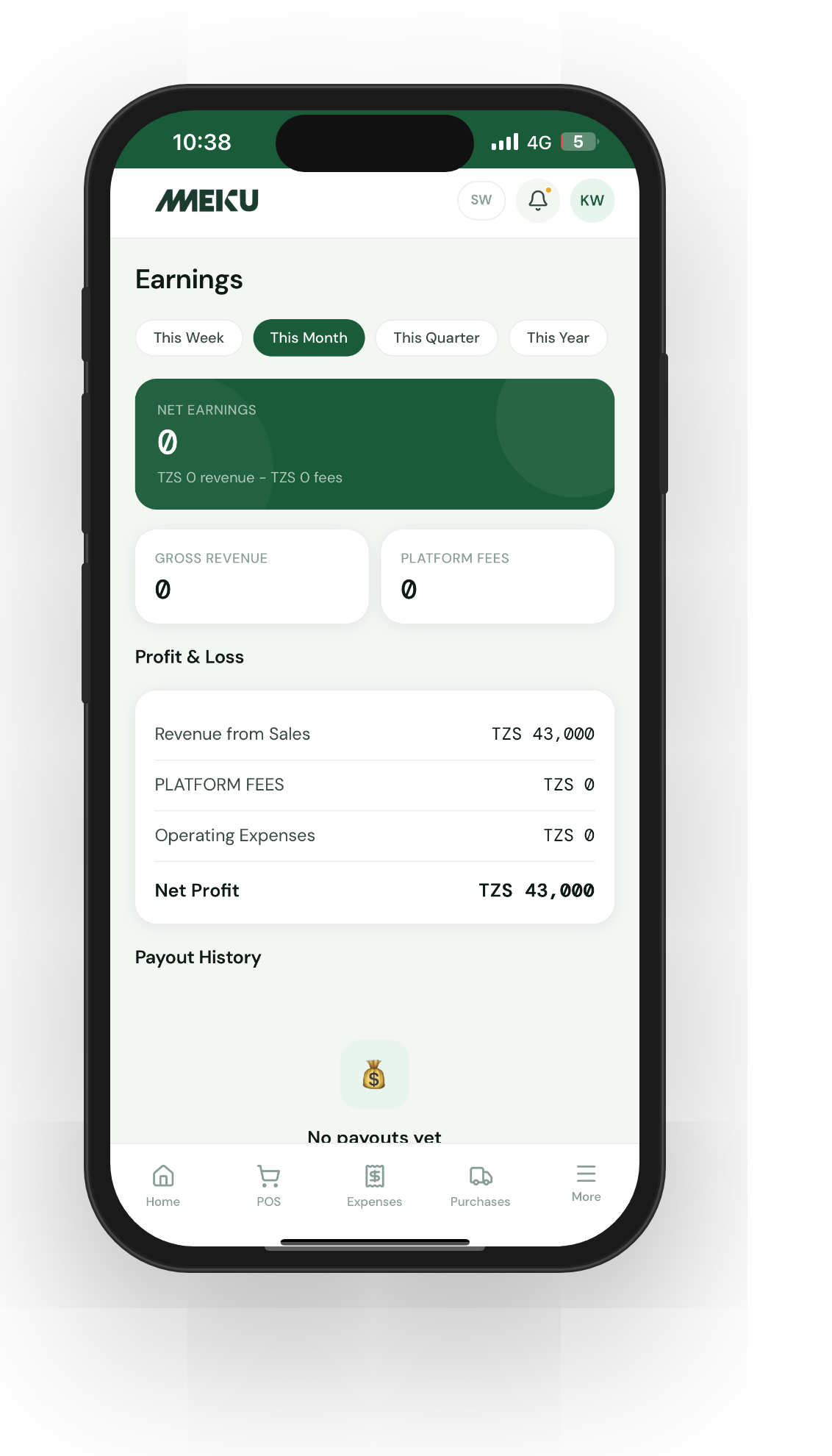
When the rider delivers, your order moves to Paid in your queue. The day’s payouts run at 01:00 EAT and your earnings from this order land in your next daily payout. The amount column is now real money headed to your phone.
Common questions
Why does my customer pay more than I receive? Online orders have a service fee (Meku’s commission) and a delivery fee (paid to Dodo) added on top of your prices. Your customer sees a single total; you see the breakdown. Your “Total to you” is the subtotal of your products, unchanged by the fees.
What if the rider can’t find my customer? Dodo handles it on their side — they’ll call your customer, retry, or return the package to you if undeliverable. You’ll see a delivery failed state in that case, and the order stops at Handed over. Contact support if it sits in failed for more than a few hours.
Can I refund an order if my customer changes their mind after handover? Refunds after handover go through Meku support — open a ticket from Settings → Contact Support. We don’t expose a one-click refund button on already-handed-over orders because the rider has done work that’s already been billed by Dodo; a refund requires a coordinated reversal.
What to read next
- How to list your shop on Meku Marketplace — discovery for the customers placing these orders.
- How to customise your Meku online storefront — the storefront they came from.
- How staff can use Meku without seeing your business data — your staff can update order status (they handle the hand-over) but can’t cancel.
Open merchant.meku.co.tz/orders to see your queue.