Getting started with Meku Business POS for a small retail shop
A step-by-step setup guide for shopkeepers running a rejareja-style retail counter — from creating your account to ringing up your first sale on Meku.
If you run a small retail shop — the kind we call a rejareja in Tanzania, selling everything from soda and bread to airtime and household goods — Meku Business gives you a complete till on your phone. This guide walks you through the first hour: from creating your account to ringing up your first sale.
What you need before you start
- An Android phone (any modern phone will do)
- A working email address for your account
- A list of your 10 best-selling products with prices
That’s it. You don’t need a card reader, a printer, or a computer. If you have a thermal receipt printer later, Meku connects to it — but you can start without one.
Step 1: Create your account
Open merchant.meku.co.tz on your phone, or install the Android app from business.meku.co.tz. Tap Create Account, enter your business name, email, and phone, and pick your language. Setup takes under two minutes.
Your account starts on the Free plan, which lets you manage up to 10 products. Once you’re past your first day and want to add more, upgrading to Starter (25,000 TZS/month) lifts the limit to 100 products.
Step 2: Add your first 5 products
Head to Products → Add Product. For each one, fill in:
- Name — what your customers ask for (“Coca-Cola 500ml”, not “Beverage SKU-04”)
- Price — the price you sell it for
- Stock quantity — how many you currently have on the shelf
Categories, photos, and barcodes are optional. Don’t get stuck on them on day one — you can add them later. Meku generates an SKU automatically.
Tip: Start with your five fastest-moving products. You’ll add the rest organically as customers ask for them.
Step 3: Make your first sale
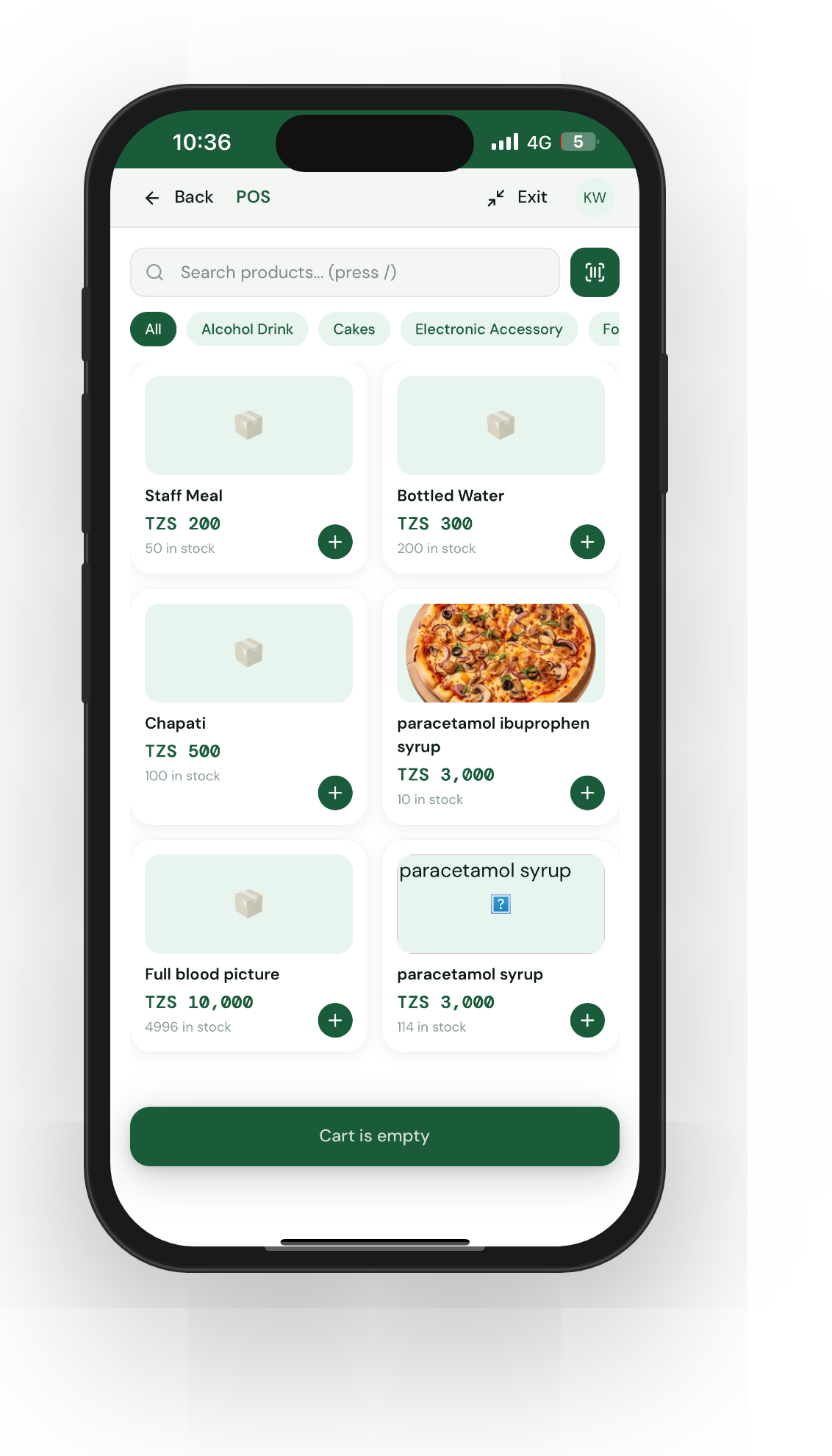
Tap POS in the bottom navigation. You’ll see a grid of your products. Here’s the flow:
- Tap a product to add it to the cart.
- Adjust the quantity with the + and − buttons if you’re selling more than one.
- Choose payment — Cash, Mobile Money (M-Pesa, Tigo Pesa, Airtel Money), or Credit.
- Tap Complete Sale.
A receipt is generated automatically. If you have a connected printer, it prints. If not, you can send the receipt to the customer’s phone via SMS, or just close the screen — every sale is saved.
Step 4: Sell on credit without losing track
If a regular customer says “niandikie mzee, nitakulipa Ijumaa” — “put it on my tab, I’ll pay Friday” — pick Credit at the payment step. Meku will ask for the customer’s name and (optionally) phone number.
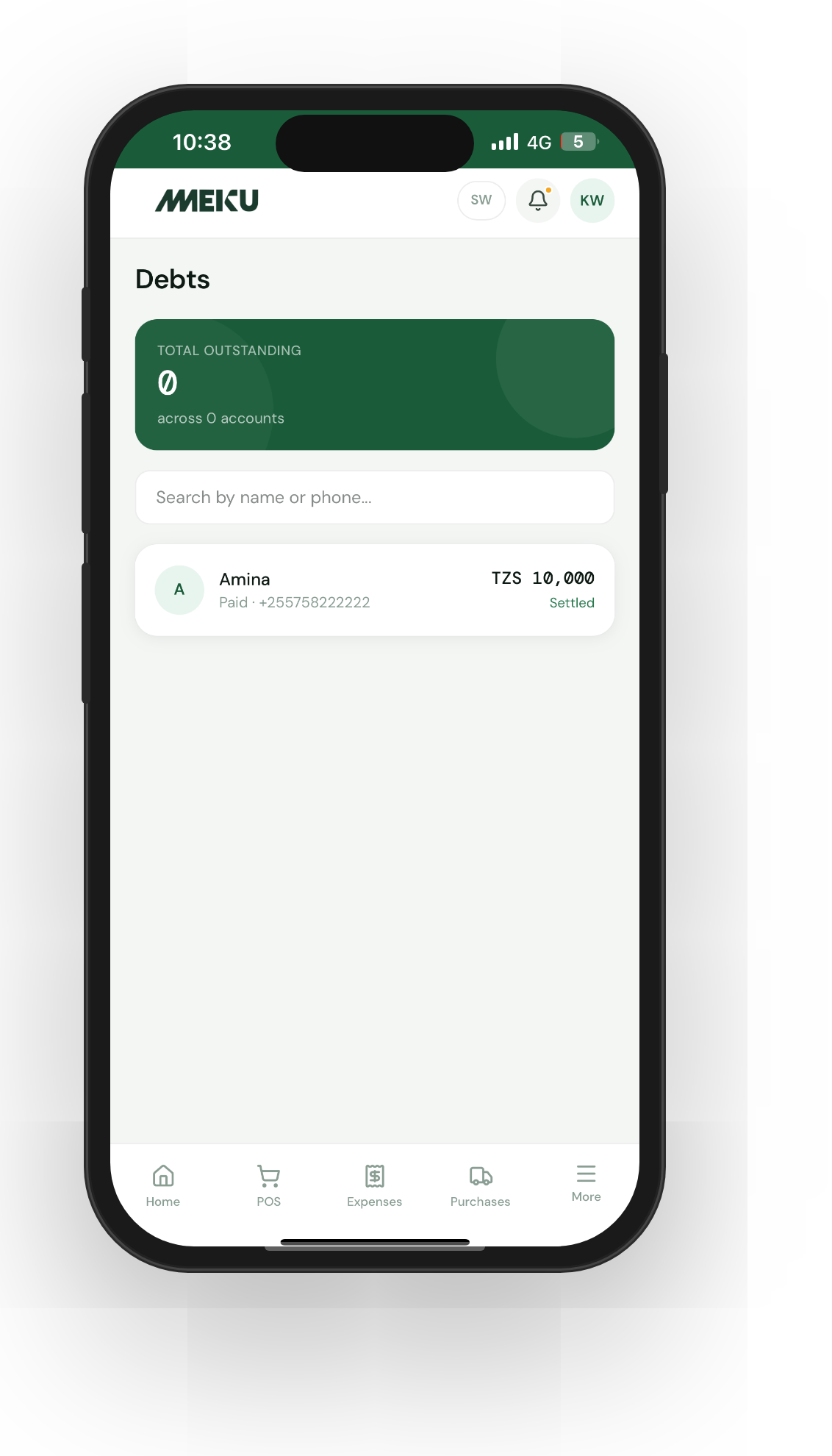
Open the Debts page anytime to see who owes you, how much, and how long the debt has been outstanding. When the customer pays, tap their entry and record the payment. Meku also sends polite SMS reminders automatically at 7, 30, and 60 days.
Step 5: See your day’s numbers
At the end of the day, open the Analytics page. You’ll see:
- Total revenue today, broken down by cash / mobile money / credit
- Top-selling products
- Outstanding debts as a quick total
This is the part most shopkeepers tell us they’ve never had before. Knowing exactly how much you sold, who paid in which way, and what you’re owed — without flipping through a notebook — is the single biggest reason merchants stick with Meku after the first week.
Common questions
Do I need internet to use the POS? You need internet to sign in and sync. After that, the POS works briefly if your connection drops, and resyncs when you’re back online. For a busy shop, a small data bundle (500 MB/month) is plenty.
What if I make a mistake on a sale? Owners can void a sale from the sale detail page. Stock is automatically returned to your inventory. The original sale stays in your audit history — so your books are always honest.
Can my staff use the POS without seeing my profit? Yes. Add staff under Settings → Staff and assign them the Staff role. They can use POS, record expenses, and manage debts — but the analytics and earnings pages stay private to you.
What to read next
- How to track stock on Meku without counting every day — the inventory features that save you a weekly stock-take.
- How to track credit sales and customer debts on Meku — getting the most out of the Debts module.
- How to set prices using Meku analytics — spotting items you’re underpricing.
Open merchant.meku.co.tz/signup when you’re ready to start. If you get stuck, reply to your welcome email — we read every message.