
How staff can use Meku without seeing your business data
Set up staff accounts on Meku with the right permissions — let someone work the till while your prices, profit, and business numbers stay private.
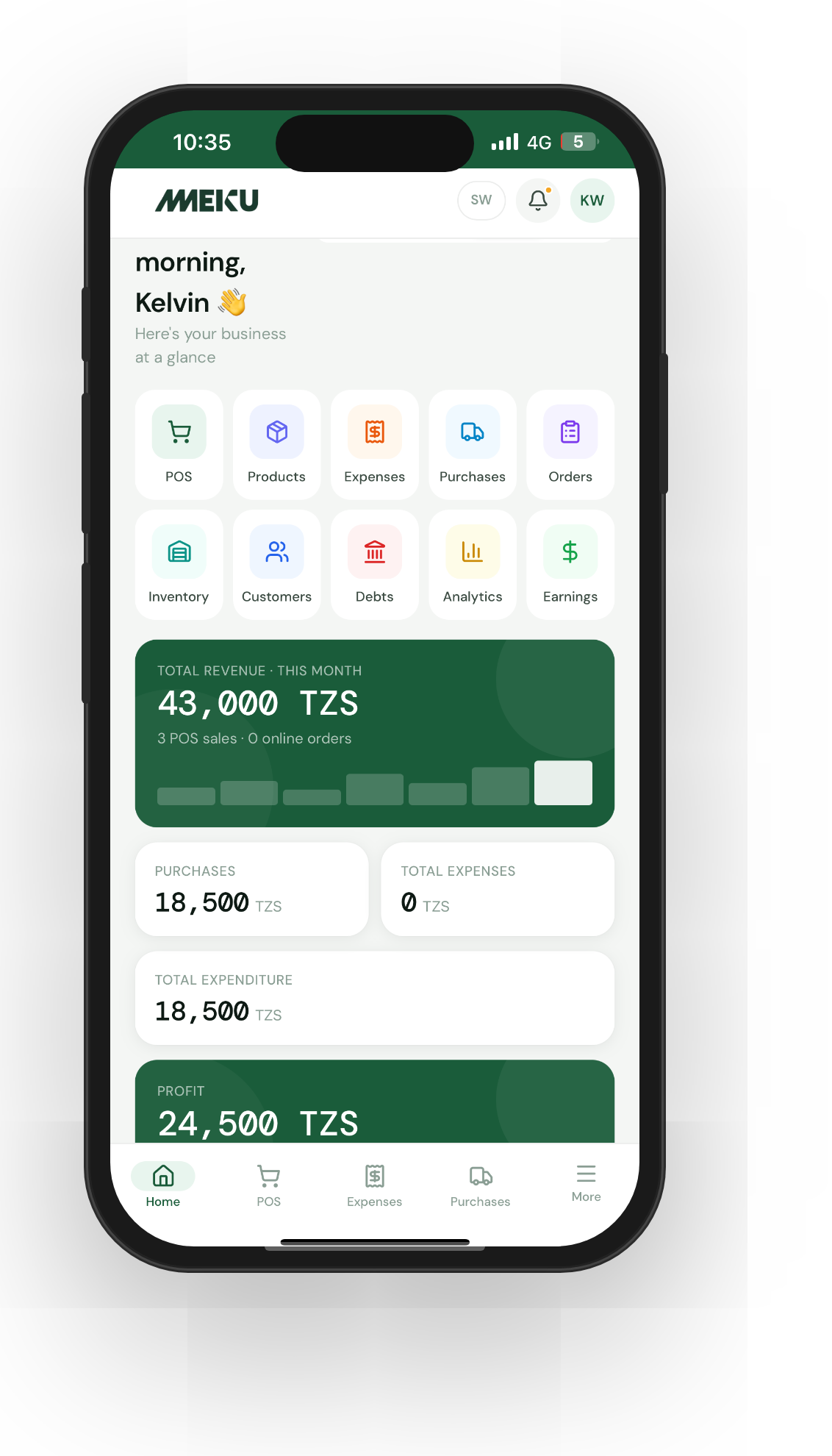
When you hire your first helper, the temptation is to hand them your phone or your password. Don’t. Meku has staff accounts that let someone work the till while your prices, profit margins, and business numbers stay private to you. Setting it up takes two minutes per person.
What you need before you start
- The staff member’s full name, phone, and a personal email address
- A sense of how much access they need (POS-only? POS plus stock? POS plus inventory plus expenses?)
Step 1: Open Staff Management
Tap Settings → Staff Management. You’ll see your team list — you first, then everyone else. Tap Add staff member.
Step 2: Pick a role
Three roles to choose from, in order of trust:
- Staff — can use POS, view products in the POS catalogue, record their own expenses, manage purchases and debts, view and update orders. Cannot see analytics, cannot delete products, cannot adjust stock, cannot see other staff’s expenses.
- Manager — everything staff can do, plus full inventory management, full analytics, delivery management, and the ability to cancel orders.
- Admin — everything manager can do, plus user management and billing access. Useful for a co-owner.
Most retail shops put the cashier on Staff and a head-cashier or family co-owner on Manager.
Step 3: Set the password
You set the initial password. Use something simple (six characters minimum, easy to remember) — they’ll change it on first login.
Step 4: Tell them what changes
When your staff member logs in they’ll see:
- A trimmed-down dashboard (Today’s sales, today’s debts, today’s pending orders — nothing else)
- POS, Sales (today only), Purchases, Orders, Debts, Expenses in the navigation
- No Products page, no Analytics page, no Billing, no Storefront
When they open the Sales page, they only see today’s sales. When they open the dashboard, the period chip is locked to Today — they can’t browse historical numbers.
Tip: Walk your new staff member through their first sale on their own login. Five minutes of supervised practice prevents two weeks of small confusions.
Step 5: Adjust or deactivate as your team changes
Open any staff member to change their role, reset their password, or deactivate them. Deactivating is the right move when someone leaves — it preserves their historic sales and expenses (so your audit trail stays intact) but stops them logging in.
Common questions
Can staff void sales they made by mistake? No — voiding is owner-only. Staff can record refunds at point of sale, but voiding a completed transaction requires you. This is intentional — voiding affects your analytics.
Why can my staff see the customer’s phone on a debt? Because debt collection is part of their job. If a customer comes in to pay an outstanding tab, your staff member needs to be able to find them. The phone is functional data, not sensitive data.
Can a staff member work from their own phone?
Yes — they sign in on merchant.meku.co.tz or the Android app with their own credentials. You don’t need to share devices. Each login is tied to its own audit trail, so the system knows who recorded what.
What to read next
- How to track stock on Meku without counting every day — your managers can adjust stock; staff can flag low stock.
- How to track business expenses on Meku — your staff can record their own expenses (e.g. boda fares).
- How to track credit sales and customer debts on Meku — your staff handle credit at the counter, you keep the bird’s-eye view.
Open merchant.meku.co.tz/settings/staff to add your first staff account.